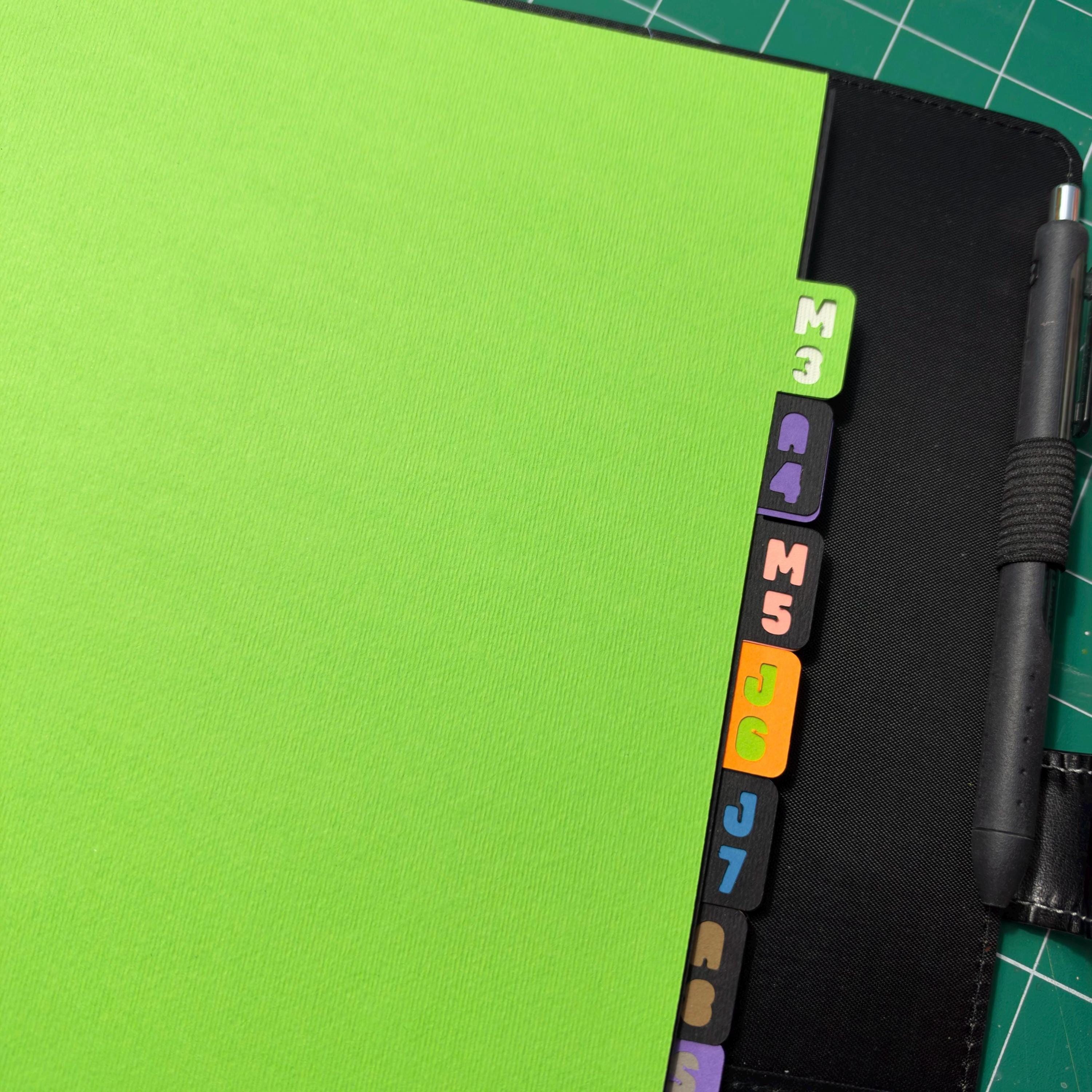
3 Ring Binder Divider Bundle for Cutting Machines, Easy to cut planner dividers, Monthly, 12 tabs, 4 tabs, top tabs (digital download, SVG)
$16.75
3 Ring Binder Divider Bundle for Cutting Machines, Easy to cut planner dividers, Monthly, 12 tabs, 4 tabs, top tabs (digital download, SVG)
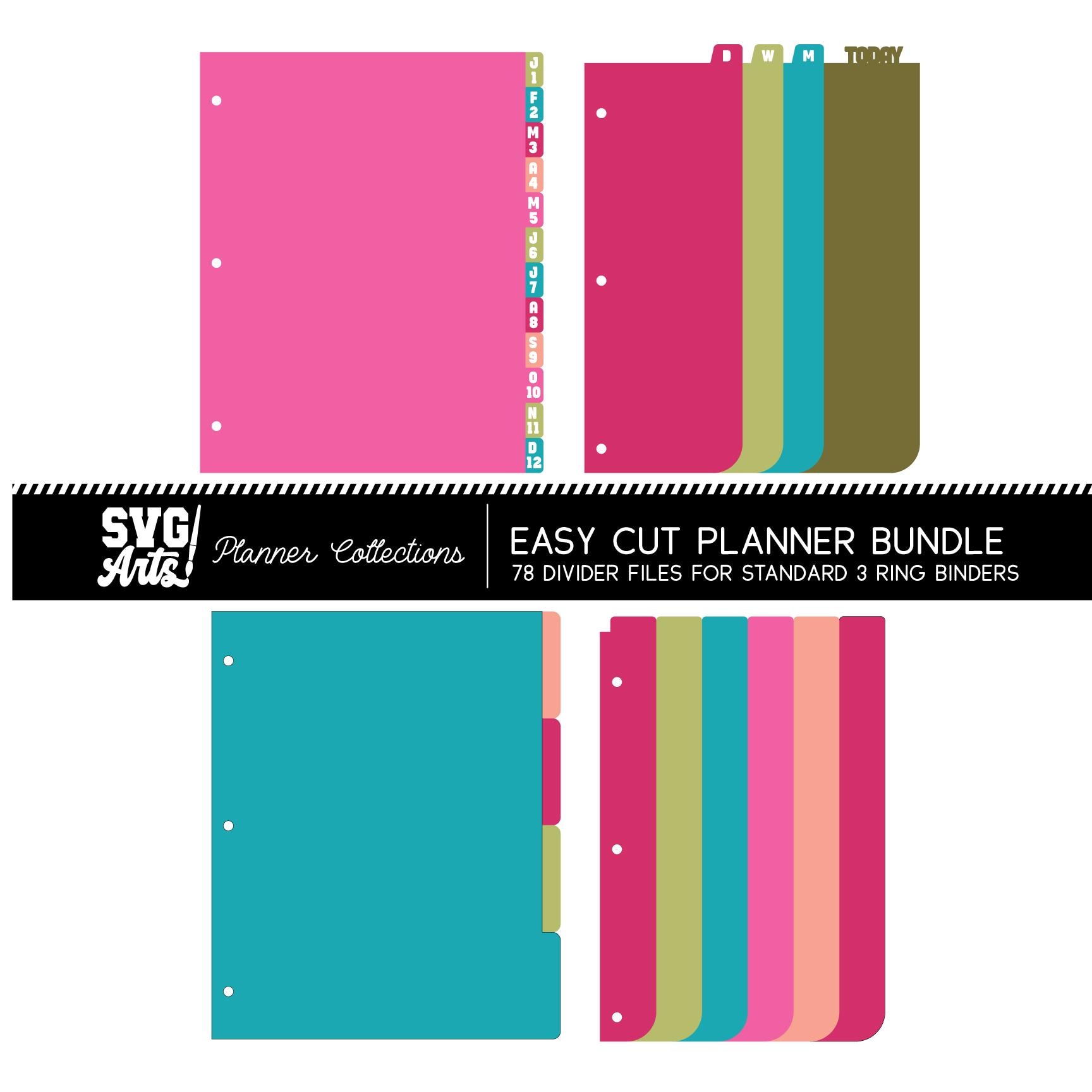
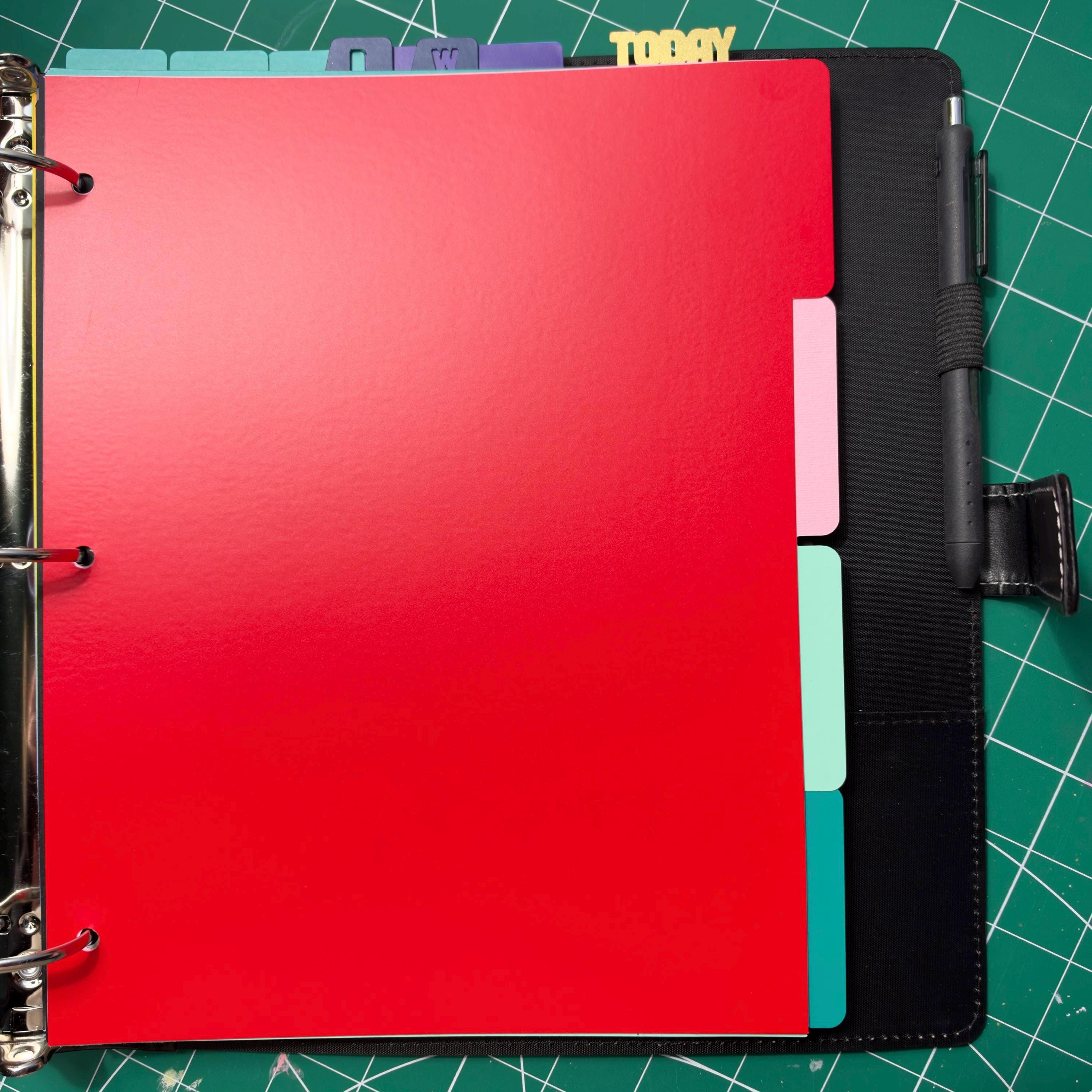
Create your own Beautiful Planner with these easy to cut planner dividers. You can cut the dividers in your own color scheme by selecting the card stock colors of your choice. You can use patterned card stock mixed with solids to create a them design. Or make ultra durable dividers by applying vinyl to your cardstock first, then cutting. This technique makes wonderful duotone dividers (one color/texture on one side and another color texture on the other)
Once done, these dividers can be used year after year, or inexpensively make different planners for different projects. Even use to create your own recipe book/binder.
You receive a total of 78 files for your planner creations.
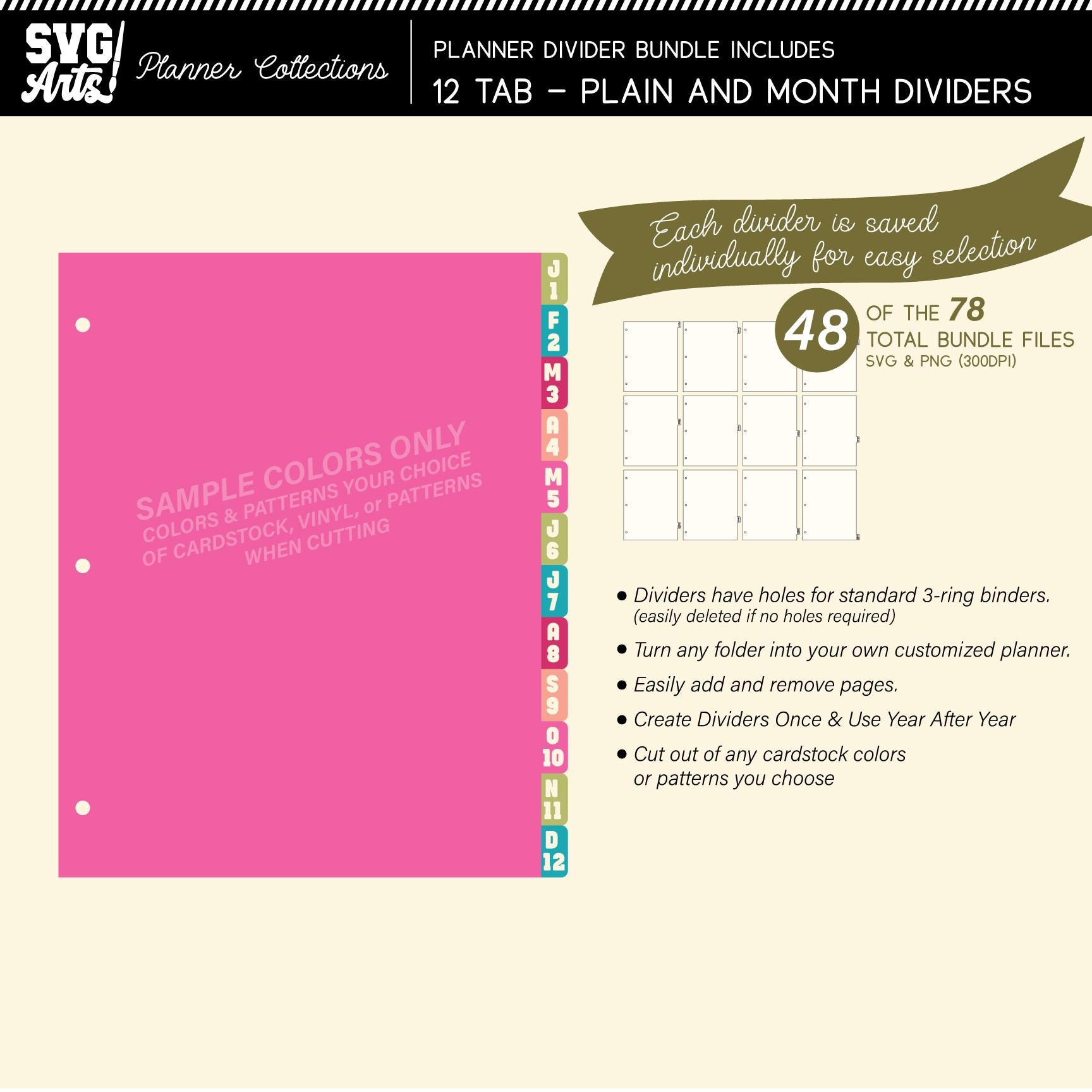
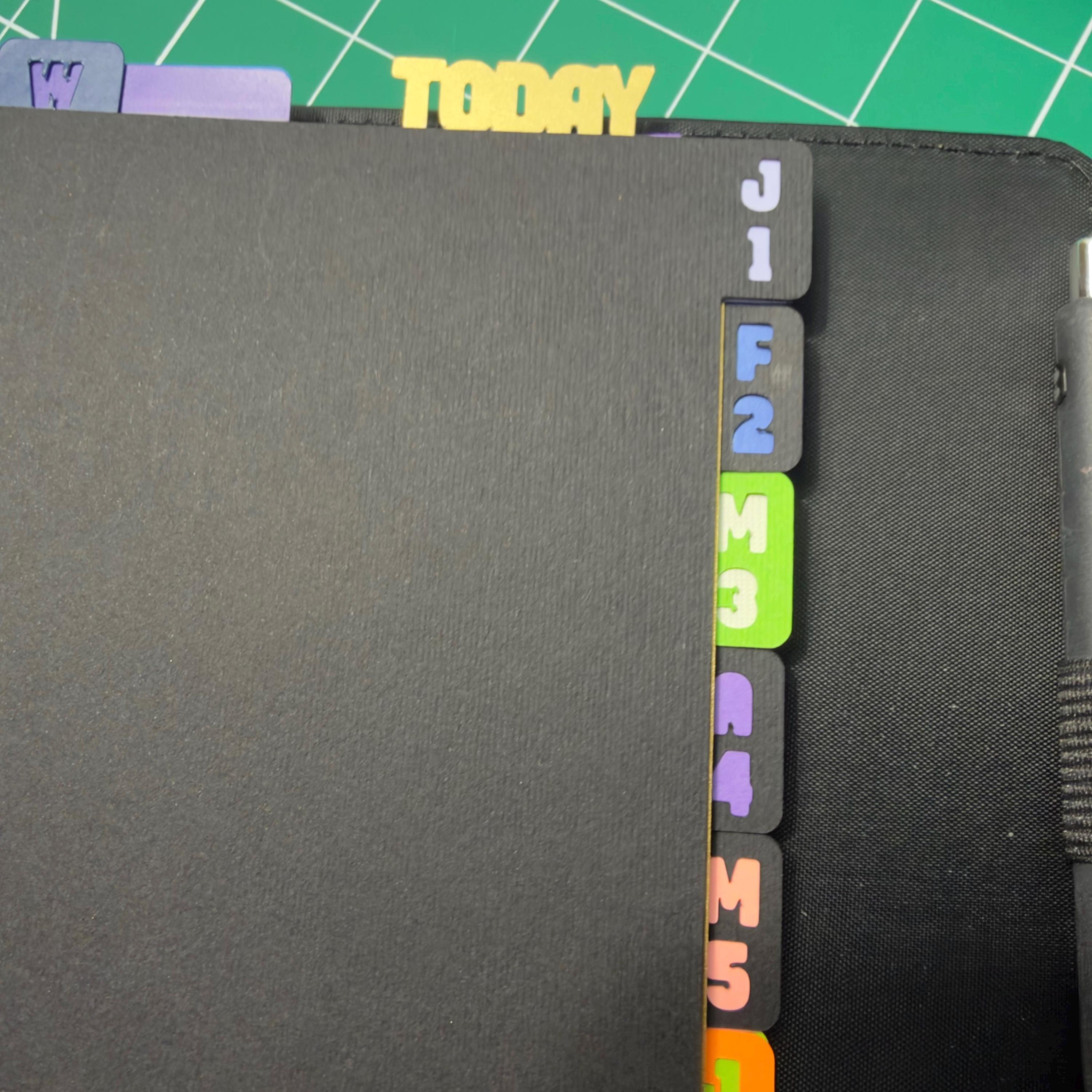
- 12 Monthly Tabs that have the Month Initial Letter and Month Count (makes a quick reference that is incredibly useful) (12 SVG, 12 PNG formats)
- 12 Right Side Plain Tab dividers (12 SVG, 12 PNG formats)
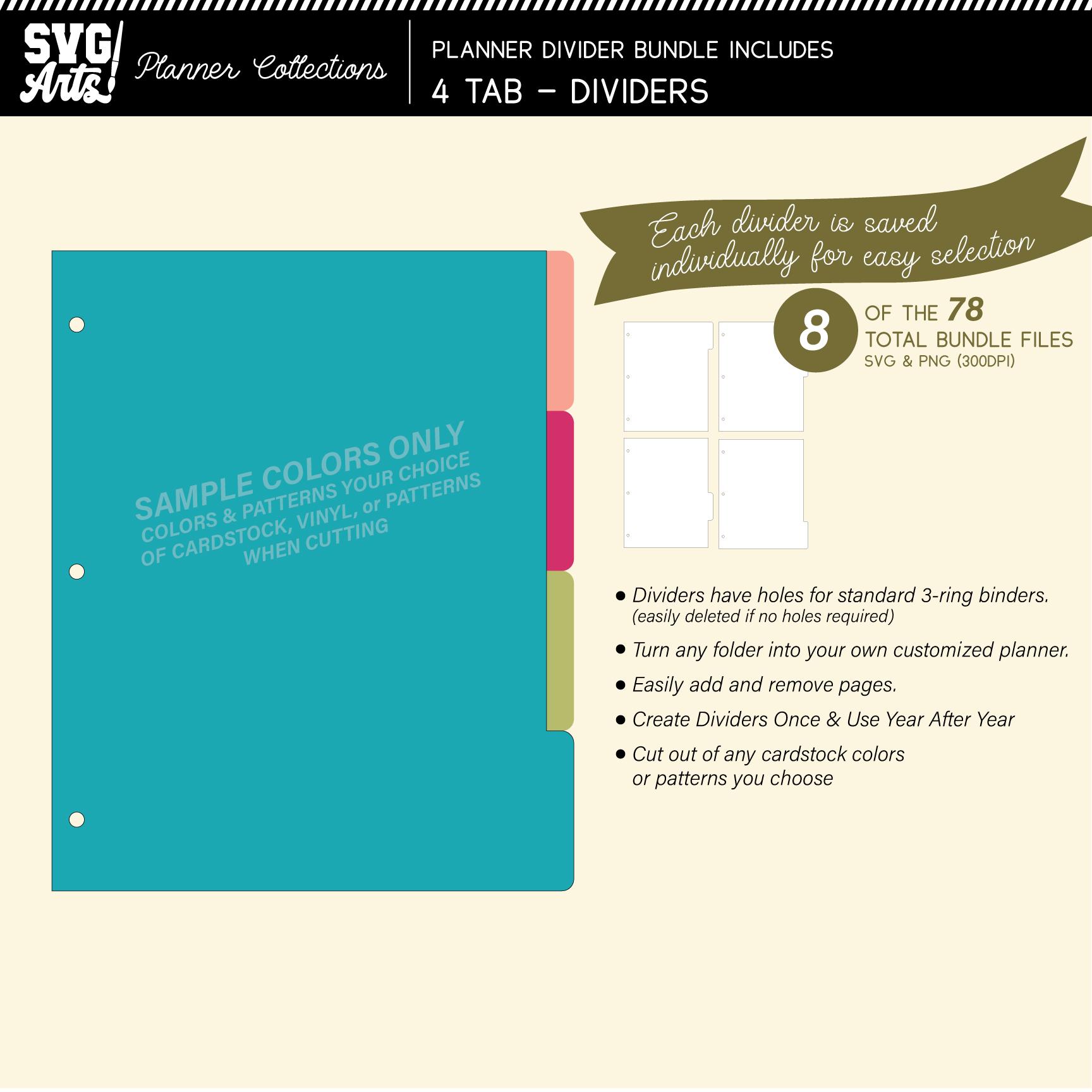
- 4 Right Side Tab dividers (4 SVG, 4 PNG formats)
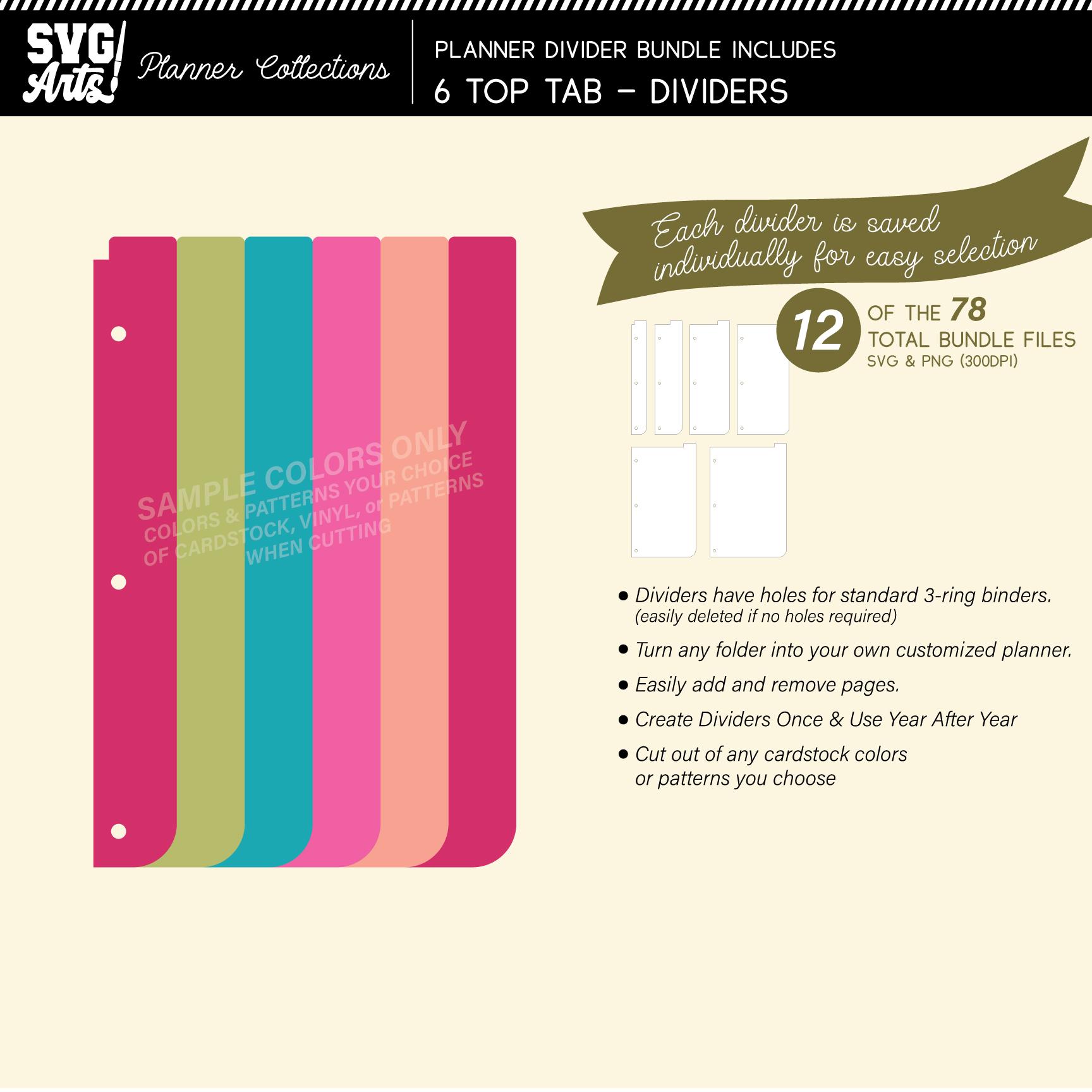
- 6 Top Side Tab dividers (6 SVG, 6 PNG formats)
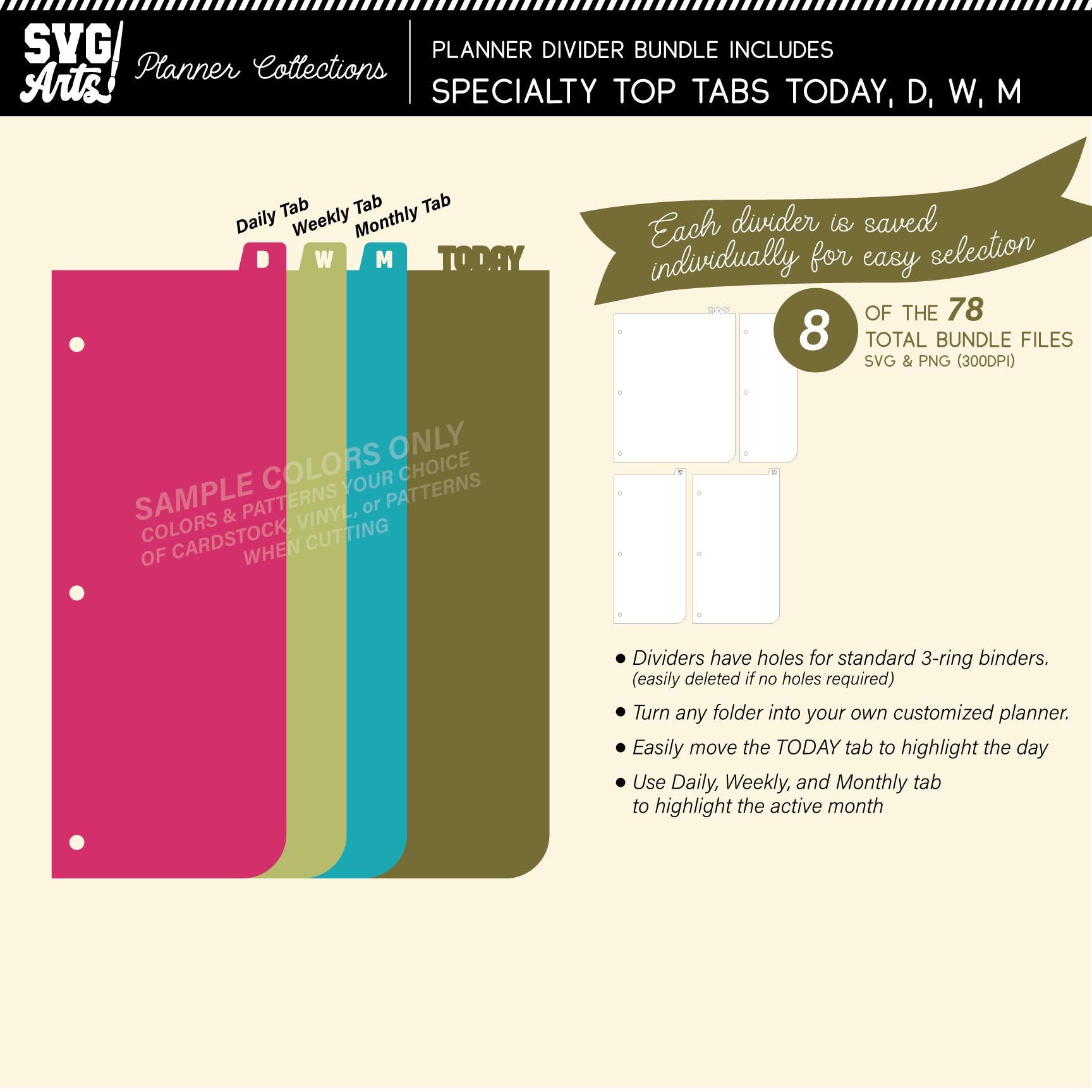
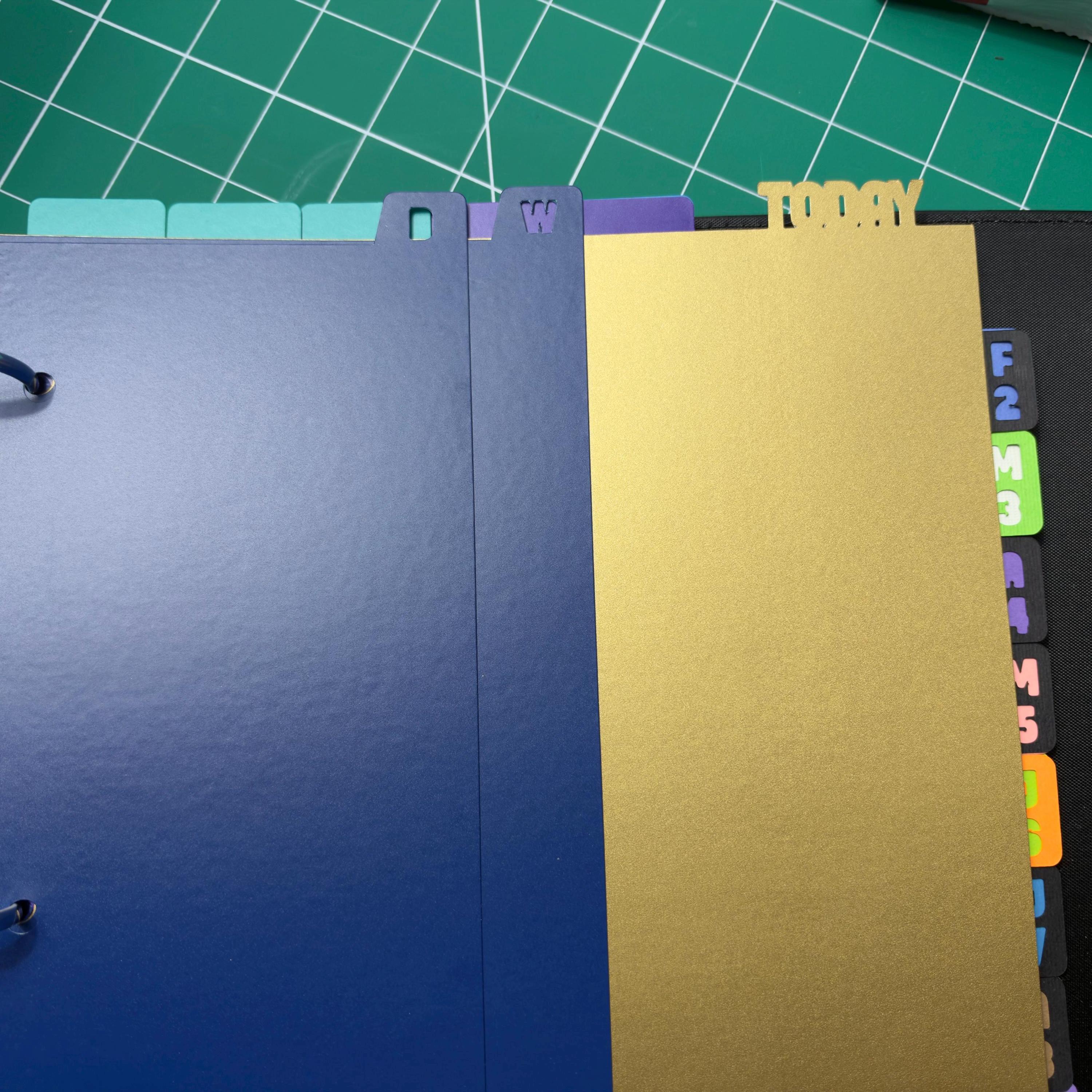
- 4 Specialty Top Side Tabs for "TODAY", "D" (for daily), "W" (for weekly), "M" (for monthly) (4 SVG, 4 PNG formats)
Digital downloads
Your files will be available to download once payment is confirmed.
Returns & Exchanges
Returns & exchanges not accepted
But please contact me if you have problems with your order
The following items can't be returned or exchanged
Because of the nature of these items, unless they arrive damaged or defective, I can't accept returns for:
- Custom or personalized orders
- Perishable products (like food or flowers)
- Digital downloads
- Intimate items (for health/hygiene reasons)
Frequently Asked Questions
How to import SVG in to Cricut Design space?
I have several customers inquire about the importing SVG files into their Cricut Design space. Here is some basic info to get you started.
Importing SVG Files in Cricut Design Space
1. Log in to Design Space.
2. Click the Create New Project button.
3. Click the Upload Image button.
4. Click the Vector Upload button.
5. Click the Browse button and locate your svg file that you want to import.
The image should now be viewable in your Design space.
Cricut provides lots of helpful details here: https://help.cricut.com/hc/en-us/articles/360009556313-Uploading-Images-into-Design-Space
Here is a great video link I have found very helpful:
https://m.youtube.com/watch?v=RgewC02OBQc