Mailbox SVG, Cat and Plant, Address Number Cut Files (Downloadable) - For Standard Mailbox
$6.99
Mailbox SVG, Cat and Plant, Address Number Cut Files (Downloadable) - For Standard Mailbox
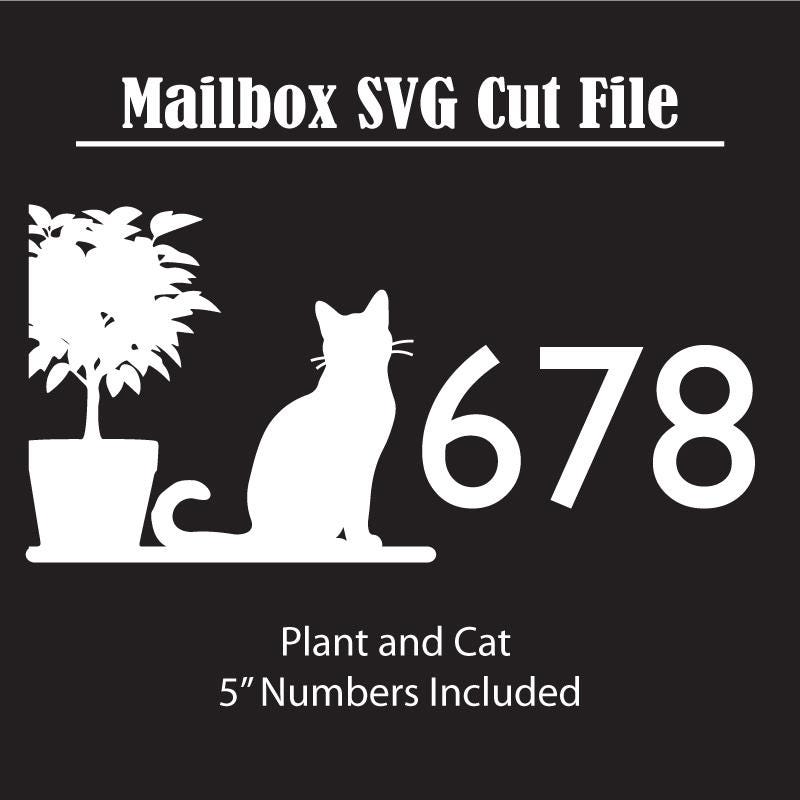
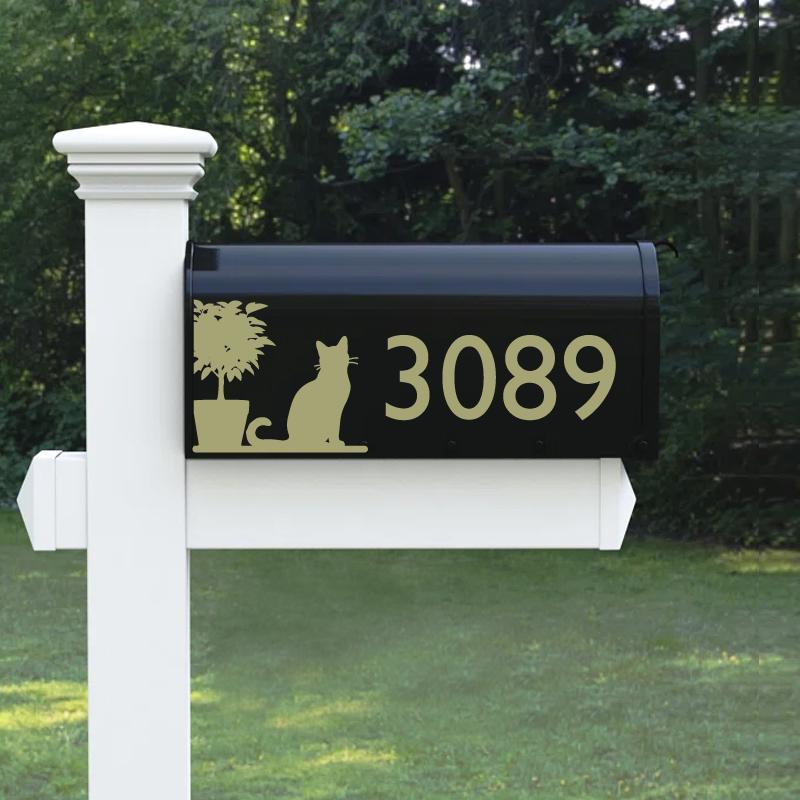
Mailbox street address digital cut files. Add some personality to your mailbox with this stylish Cat and Plant mailbox cut file, includes 5" street numbers, perfect for use with your digital cutting machines. Create your own vinyl transfers for your mailbox, or even use to create any type of signage that you would like to display street address on.
Proportioned for standard size mailbox size (20"w x 9"h)
Your Instant Download Purchase includes:
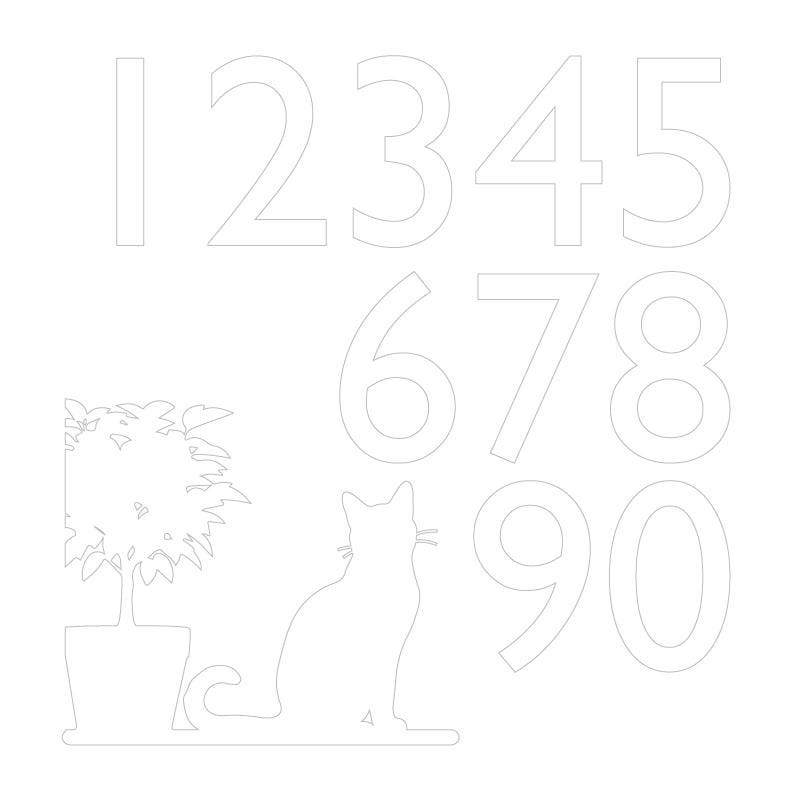
1 SVG file in 12" x 12" area contain the presized 5" numbers 0-9, and the Cat and Plant graphic.
This artwork is 100% vector art SVG, you can scale this to ANY size without loss of quality, or save as any other digital format you need.
Please convo me with any questions. Thank you!
________________________________________________________________
*SVGArts images are for PERSONAL USE ONLY and limited commercial use ( up to 100 on personal craft items to sell at your own craft sale or similar purpose).
Please do not share or resell the files. Please feel free to contact me for a commercial license if you will be printing more that 300 items using this artwork.
INSTANT DOWNLOAD CLIP ART - NO FILE OR PRODUCT SHIPS
Digital downloads
Your files will be available to download once payment is confirmed.
Returns & Exchanges
Returns & exchanges not accepted
But please contact me if you have problems with your order
The following items can't be returned or exchanged
Because of the nature of these items, unless they arrive damaged or defective, I can't accept returns for:
- Custom or personalized orders
- Perishable products (like food or flowers)
- Digital downloads
- Intimate items (for health/hygiene reasons)
Frequently Asked Questions
How to import SVG in to Cricut Design space?
I have several customers inquire about the importing SVG files into their Cricut Design space. Here is some basic info to get you started.
Importing SVG Files in Cricut Design Space
1. Log in to Design Space.
2. Click the Create New Project button.
3. Click the Upload Image button.
4. Click the Vector Upload button.
5. Click the Browse button and locate your svg file that you want to import.
The image should now be viewable in your Design space.
Cricut provides lots of helpful details here: https://help.cricut.com/hc/en-us/articles/360009556313-Uploading-Images-into-Design-Space
Here is a great video link I have found very helpful:
https://m.youtube.com/watch?v=RgewC02OBQc